
How to use Up24 Sale System
From installing the app to closing the day. Follow the steps in order the first time, then use the list on the left to jump to what you need.
Step 1
Install and first start
Up24 Sale System runs on Windows 10 or 11 (64-bit). The installer needs no admin rights and takes a few seconds.
- 1
Download the installer (Up24-Sale-System-Setup-<version>.exe) and run it.
- 2
If Windows says "Windows protected your PC", click More info, then Run anyway. The installer is not code-signed yet.
- 3
Open the app. On the first start, choose the language (English or Urdu), type the shop name and choose the owner's PIN.
- 4
The app shows a recovery code. Write it on paper and keep it safe. It is the only way to choose a new PIN if you forget it.
Good to know
- The app is free for 30 days from the first start. No sign-up and no internet are needed to sell.
- You can change the language later in Settings.
Step 2
Add your products
Billing is only as fast as your product list. Add your items once, and every sale after that is a scan or a tap.
- 1
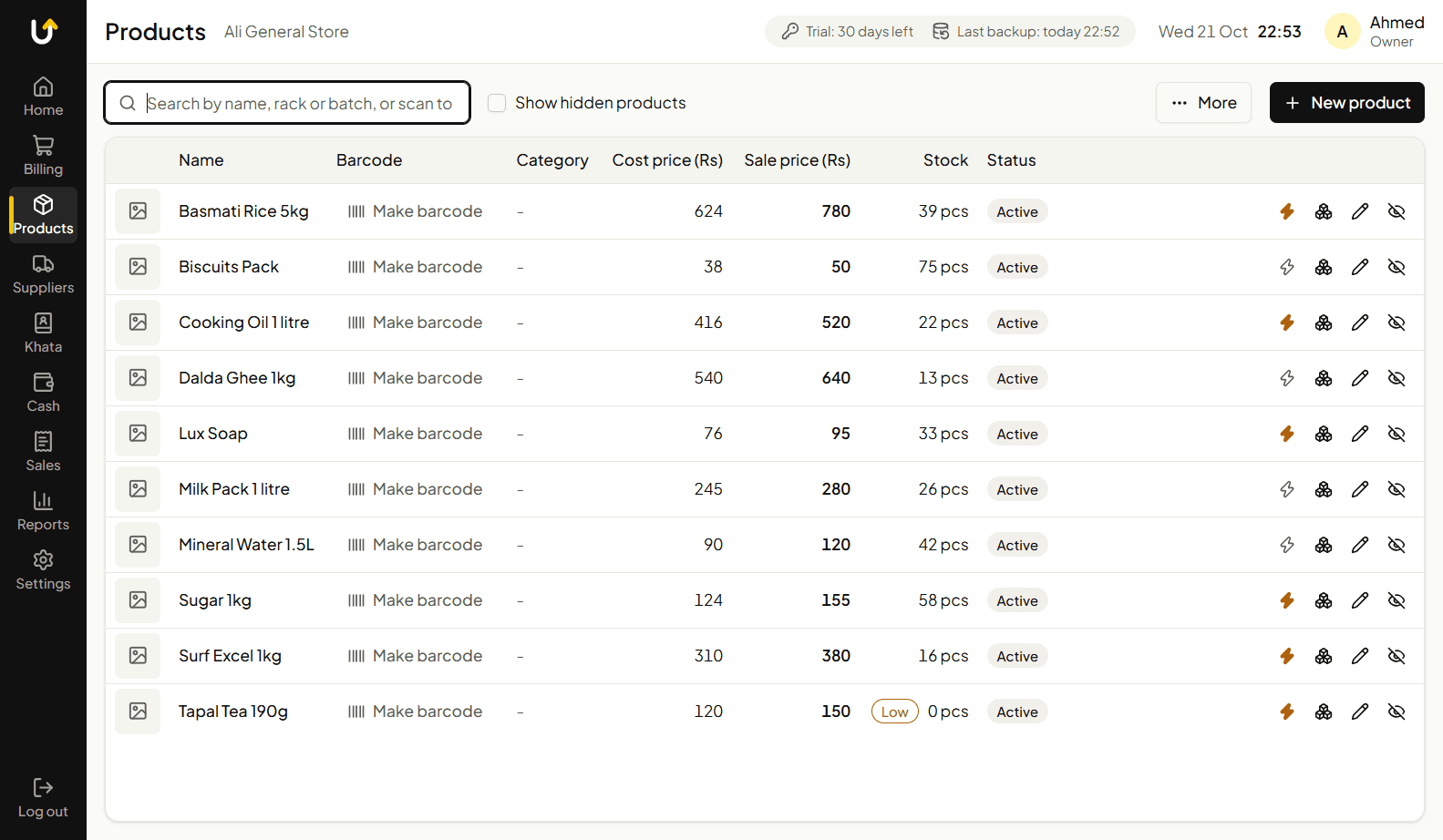
Open Products and add a product: name, barcode, cost price, sale price and starting stock.
- 2
Choose the unit (piece, Kilogram, Dozen and more, or add your own). Weight items can be sold up to 3 decimals, for example 1.250 kg.
- 3
For items without a barcode, mark them as quick buttons so they show as big buttons on the Billing screen.
- 4
Already have a list? Import products from Excel instead of typing them one by one.
- 5
Medical stores: add the expiry date and batch. Clothes and shoes: make every size and color of one article in one go, each with its own stock and barcode.
- 6
Loose items need a barcode? Print barcode labels on A4 sheets from Products.
Good to know
- Only the owner can change prices and costs. A cashier can look at products but not edit them.
- A product you no longer sell is hidden, not deleted, so old sales keep their names.
Step 3
Make a sale
Billing is the screen you will use all day. It works with a barcode scanner, the keyboard or the mouse.
- 1
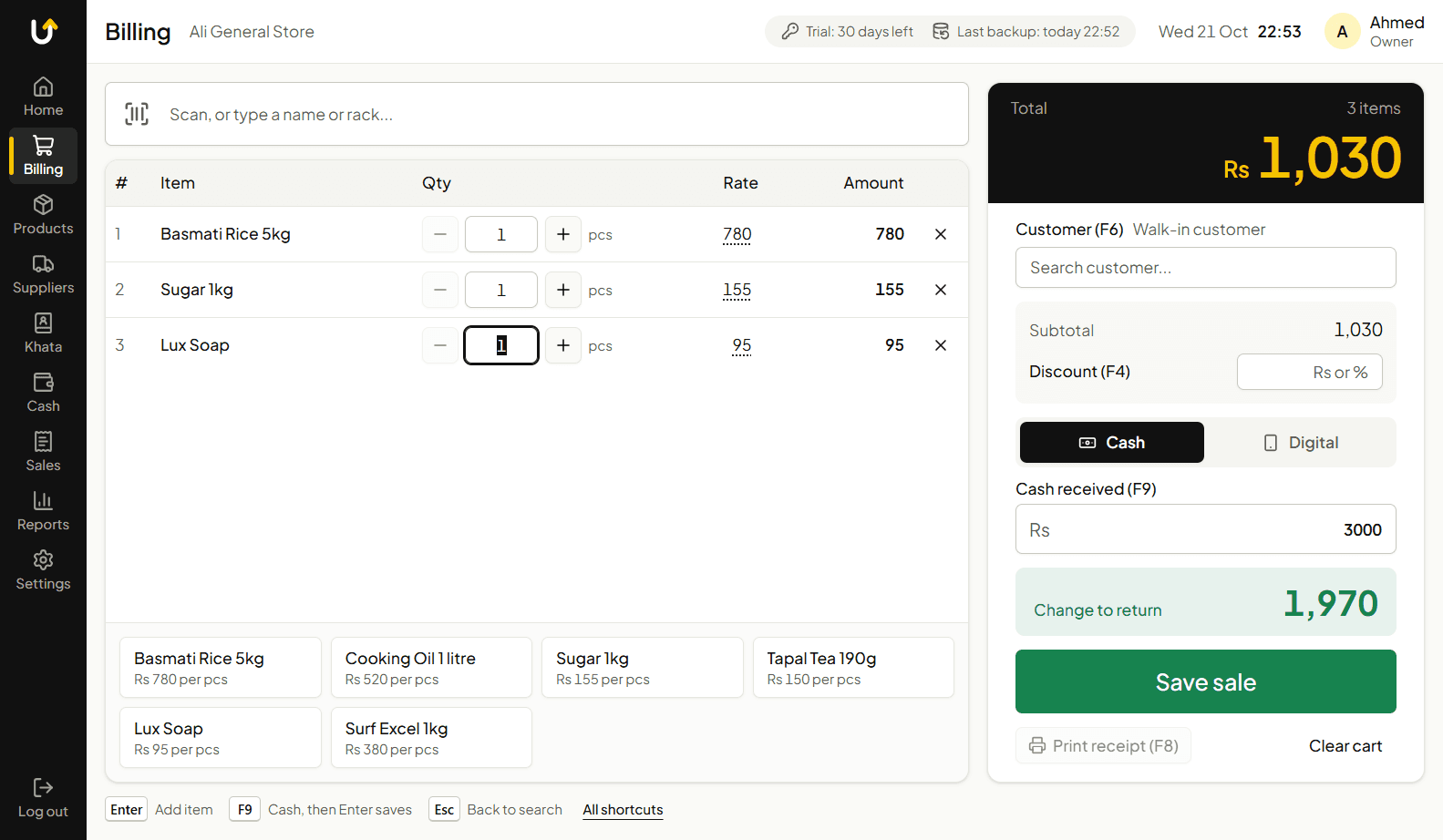
Open Billing. Scan a barcode, type a product name, or tap a quick button. The item goes into the bill.
- 2
Change the quantity if needed. To sell by amount, enter the rupees (for example Rs 100 of sugar) and the app works out the weight.
- 3
Add a discount in rupees or as a percent (type 10%). The owner sets how much discount a cashier may give.
- 4
Choose a customer only if part of the bill is udhaar. Walk-in customers pay in full.
- 5
Enter the cash received. The change is shown in big numbers. Press Enter to save the sale.
- 6
Print or share the receipt from the print window.
Good to know
- A sale is saved completely or not at all. If the power goes off in the middle, the bill is never half saved.
- If a customer pays less than the total, the rest becomes udhaar on their khata.
Step 4
Keyboard shortcuts for the counter
On a PC you can run a whole sale without touching the mouse.
- 1
F2: change the quantity of the last item.
- 2
F4: type a discount.
- 3
F6: choose a customer (needed for udhaar).
- 4
F9: enter the cash received. Then press Enter to save the sale.
- 5
F8: open the print window for the last receipt.
Step 5
Cash, digital payment and udhaar
Every bill is cash, digital, udhaar or a mix. The Sales list can be filtered by each.
- 1
Cash: type the amount received. The app shows the change.
- 2
Digital (JazzCash or Easypaisa): the owner adds the shop's own QR in Settings. Choose digital on the bill and show the QR to the customer. The app does not confirm the payment, so check your phone for the money message first.
- 3
Tax: if you charge a fixed tax on digital payments, the owner sets it once in Settings and it is added to bills paid digitally.
- 4
Udhaar: choose a customer and enter less cash than the total. The rest is written to their khata.
Good to know
- Wholesale shops can keep more than one rate per product, carton prices and a credit limit for each customer.
Step 6
Khata: udhaar, payments and reminders
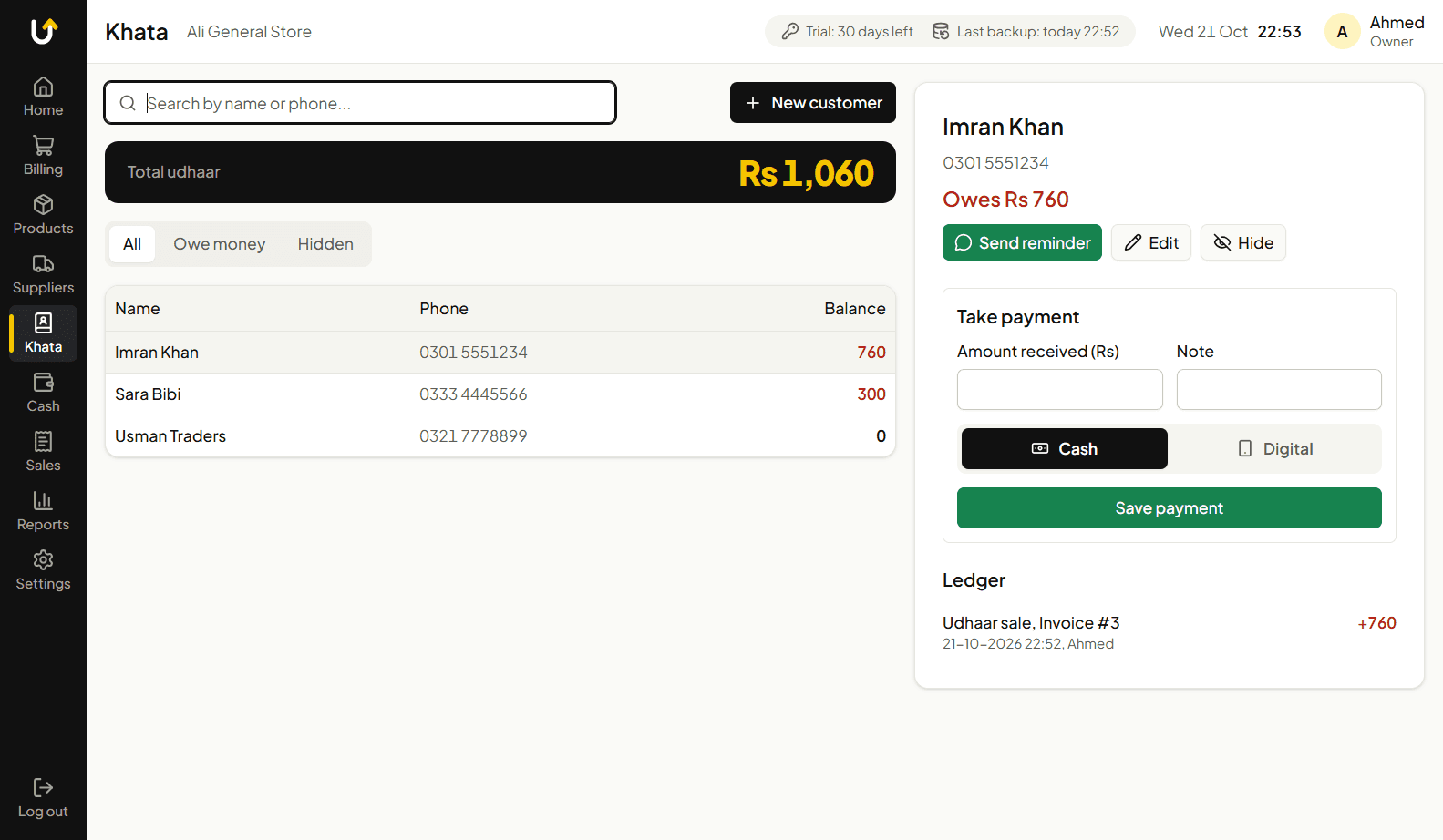
Khata keeps every customer's udhaar, the payments they made and the full history.
- 1
Open Khata and add a customer with their name and WhatsApp number.
- 2
Udhaar sales appear in the customer's account automatically. Open a customer to see every bill and payment.
- 3
When a customer pays, open their account and record the payment. The balance goes down.
- 4
To remind a customer, tap the WhatsApp button. The message is ready with their name and balance. You press Send.
Good to know
- Set a credit limit for a customer so the udhaar cannot grow without you noticing.
- Reminders are sent from your own WhatsApp. You choose when each message goes out.
Step 7
Stock, suppliers and expiry
Stock goes down with every sale and up when goods arrive. Nothing changes the stock without a record.
- 1
When goods arrive, scan them in. Stock goes up and you can see the history of each product.
- 2
To correct the stock after counting the shelves, use the count function and enter what you really have.
- 3
Low-stock products are marked so you know what to order.
- 4
Suppliers: record purchases, send purchase orders on WhatsApp or print them, and turn an order into a purchase when the goods arrive. The app shows what the shop owes each supplier.
- 5
Expiry: the first expiry is sold first. Expired stock is never sold without the owner's permission.
Good to know
- If you sell something before entering it, the app lets the bill go through and warns you that the stock is negative.
Step 8
Sales, returns and cancelling
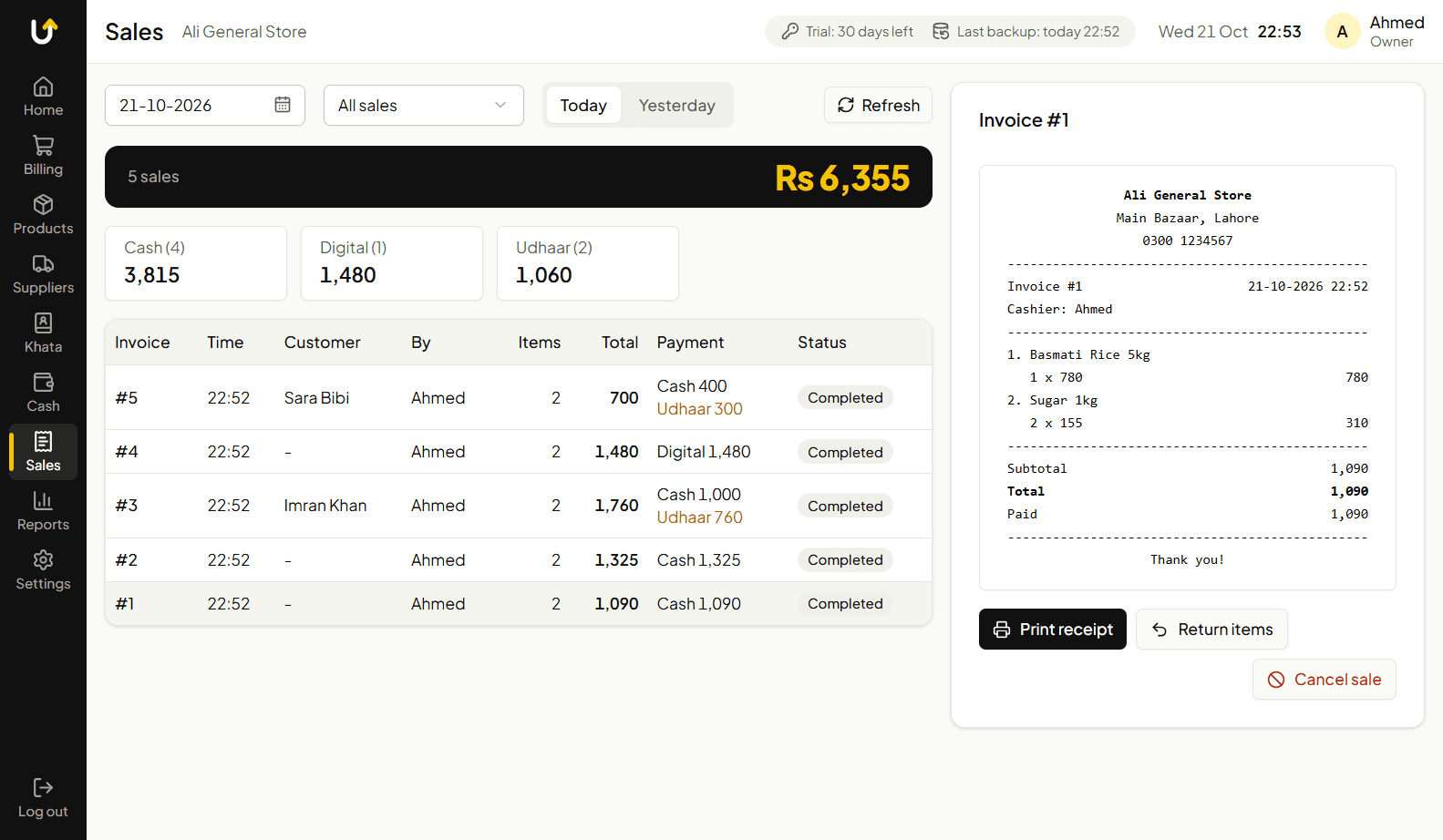
Every bill is kept. Sales are never deleted, only cancelled, so the record stays complete.
- 1
Open Sales to see the bills of today or any earlier day. Filter by cash, digital or udhaar.
- 2
Open a bill to reprint the receipt or save it as a PDF.
- 3
Cancel: only the owner can cancel a sale, and a reason is required. The stock comes back and the khata is corrected.
- 4
Returns and refunds: pick the sale and the items that came back. The money goes back as cash, or reduces the customer's udhaar.
Step 9
Expenses, cash closing and reports
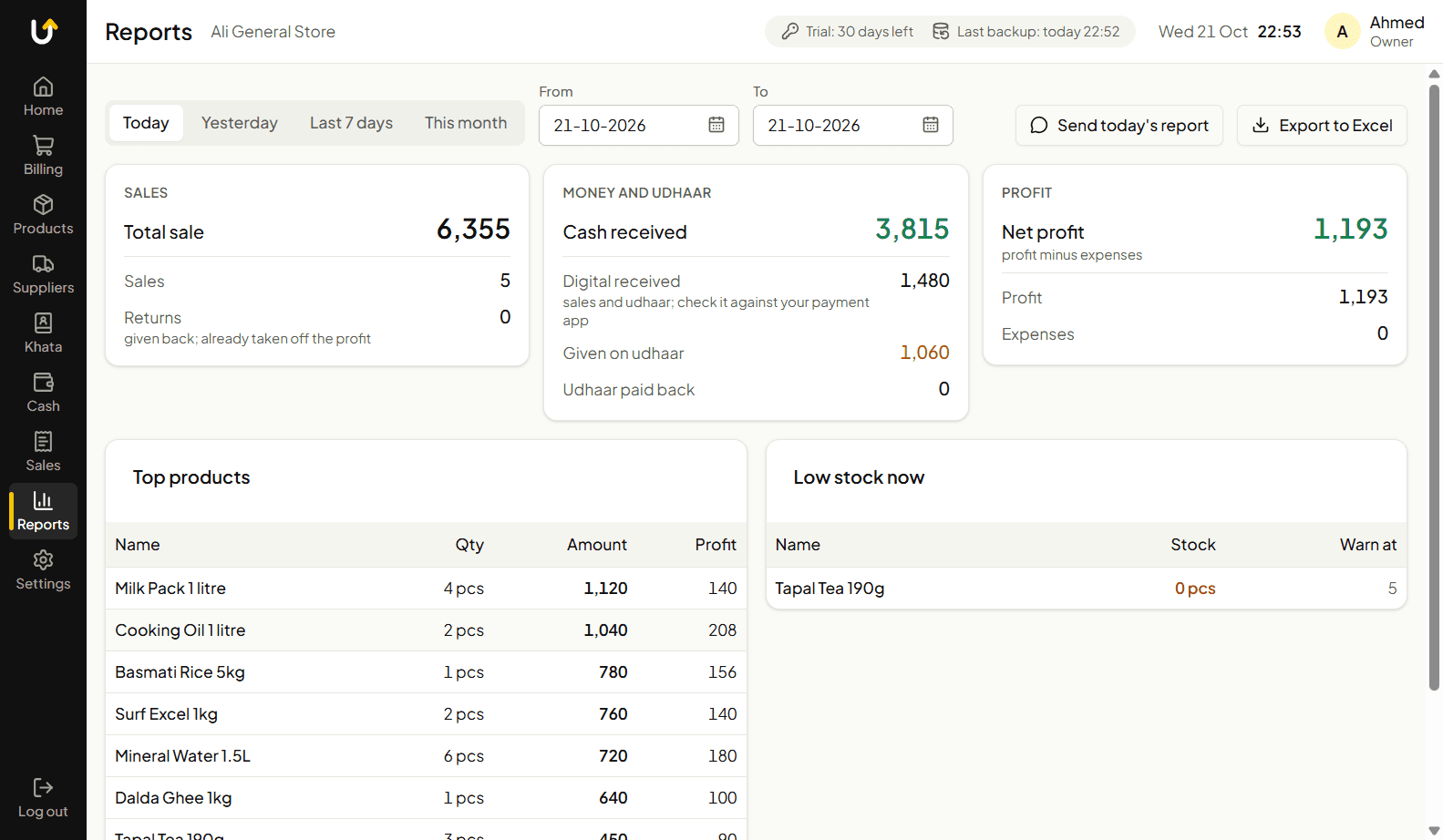
At the end of the day, the app tells you how much cash should be in the drawer and how the day went.
- 1
Write down shop expenses (electricity, rent, salaries and more) as they happen.
- 2
At closing time, count the cash in the drawer and enter it. The app compares it with its own figure and shows any difference.
- 3
Open Reports for daily and monthly sales, cash, udhaar and profit.
- 4
Export any report to Excel, or send the daily summary to your WhatsApp.
Good to know
- Profit reports are for the owner only. A cashier cannot see them.
Step 10
Receipts and printing
Receipts and WhatsApp messages can be in English or Urdu, with your shop's logo.
- 1
Press F8 or open a sale in Sales to get the print window.
- 2
Choose the language, the number of copies and whether to show the logo. Check the preview.
- 3
Choose a printer from the list of printers Windows knows. USB and paired Bluetooth printers are included, and so are receipt printers and normal page printers.
- 4
Print, or save a PDF instead.
Good to know
- If your printer is not in the list, add it in Windows first, then open the print window again.
Step 11
Owner, cashier and PIN
There are two kinds of users, so a cashier can sell without being able to change the shop's records.
- 1
The owner can cancel sales, change prices, see profit, restore a backup and change settings.
- 2
A cashier can bill, take khata payments and look at products.
- 3
Discount: the owner sets how much discount a cashier may give.
- 4
Forgot the PIN? Use the recovery code you wrote on paper at setup to choose a new one.
Step 12
Backups and where your data is
All of the shop's data stays on your PC. The app makes backups for you so one broken disk cannot end the business.
- 1
A backup is made automatically every day, zipped and checked each time.
- 2
Backups are saved in Documents\Up24-Backups. You can change the folder in Settings.
- 3
In Settings choose how many days to keep (30 to start with). You can also keep one backup per week for older weeks.
- 4
To restore, open Settings and choose the backup file. Only the owner can restore.
Good to know
- The shop database is in %APPDATA%\up24-sale-system. Uninstalling the app does not delete it.
- Copy the backup folder to a USB drive now and then. A backup on the same PC does not help if the PC is lost.
Step 13
License and updates
The app runs free for 30 days. After that it needs a license key. A key is made for one device, so it works only on the PC whose Install ID was sent to us.
- 1
Open Settings, then License (the owner only). It shows how many trial days are left and the Install ID of this PC.
- 2
Tap Send on WhatsApp. A message with your shop name and Install ID is ready, and you press Send. You can also tap Copy and paste the ID yourself.
- 3
We reply with the price and your license key. Paste the key in the License key box and tap Activate.
- 4
The License tab now shows who the license is for and the date it runs until. The top bar warns you 15 days before it ends.
- 5
If a license ends, you get 15 more days with a red warning. After that, new sales, stock entries and khata payments stop, but all your data stays readable and backups keep working.
- 6
Updates download in the background and install when you close the app. Before an update that changes the database, the app saves a copy of your data. Every update is signed, and the app refuses one that is not.
Good to know
- Moved to a new PC and restored a backup? The app gives you 7 days to get a key for the new PC.
- With counters, the license belongs to the shop and is kept at the main PC. Enter new keys there.
Step 14
More than one PC (counters)
A shop with two or more billing PCs has one main PC and the others are counters. The main PC keeps all the data. A counter has no data of its own and sells through the main PC over the shop's network, so the main PC must be on.
- 1
Install the app on every PC. Use version 0.2.0 or newer on all of them. Put all PCs on the same private network (wifi or cable, not a guest wifi).
- 2
On a new PC the app asks What is this PC? Choose This is the main PC on the one that keeps the data. On the others, choose This is a counter.
- 3
On the main PC, open Settings, then Counters, and tick Allow counters. It shows its address and port (usually 47621).
- 4
The first time, Windows asks to allow the app through the Firewall. Tick Private networks and press Allow.
- 5
Still on the main PC, type a name for the counter (for example Counter 2) and tap Show the code. The code works for 3 minutes and for one counter.
- 6
On the counter, type the main PC's address (for example 192.168.1.5), the port and the code, then tap Connect. Log in with your PIN.
- 7
On the counter, open Settings and choose its own receipt printer. Each PC keeps its own printer setting.
Good to know
- Sales made at a counter appear at the main PC at once, and invoice numbers never repeat, even if two PCs sell at the same moment.
- If the main PC is switched off or the wifi drops, the counter covers its screen and keeps the bill you were making. It carries on by itself when the main PC is back.
- Back up the main PC as usual. A counter has nothing to back up and updates itself.
- Lost or stolen counter? On the main PC open Settings, Counters, and tap Remove. It stops working at once. For a stolen main PC, use New security key, then connect every counter again.
- The main PC's address can change after a restart. If a counter cannot connect, connect it again with the new address, or ask your router for a fixed address for the main PC.
- Cannot reach the main PC? Check that both PCs are on the same network, that the Firewall step was done and that no VPN is on.
Step 15
Switch off what you do not need
A kiryana store does not need sizes and colors, and a clothes shop does not need expiry dates.
- 1
Open Settings, then Features.
- 2
Switch off wholesale, tax, sizes and colors, suppliers and other features your shop does not use.
- 3
The screens get shorter and simpler. You can switch any of them back on later.
Troubleshooting
Windows says "Windows protected your PC" when I install.
This is normal because the installer is not code-signed yet. Click More info, then Run anyway.
I forgot the owner PIN.
Use the recovery code you wrote on paper during setup to choose a new PIN. Keep that paper safe.
My printer is not in the list.
The app shows the printers Windows knows. Add the printer in Windows (or pair the Bluetooth printer), then open the print window again.
The app says the trial or license has ended.
You can still see all sales, khata and reports, and make backups. Open Settings, License, tap Send on WhatsApp to send us your Install ID, and enter the key we send back.
A counter says the main PC cannot be reached.
Check that the main PC is on, that both PCs are on the same network, that Allow counters is ticked on the main PC and that the Firewall allows Private networks. If the main PC's address changed, connect the counter again with the new one.
A counter says the versions are different.
The counter and the main PC must run the same version of the app. Update the one that is older.
A product's stock shows a negative number.
You sold it before entering the goods. Scan in the stock that arrived, or count the stock and correct it.
I need help that is not here.
Message us on WhatsApp and we will help you.
Ready to try it?
Free for 30 days. Need help setting up? Message us.